Why Is My Website Not Showing Up on Google? 10 Reasons & Fixes (2026)
It’s the digital equivalent of throwing a party, buying all the snacks, unlocking the door… and nobody showing up.
You search for your business name. Nothing. You search for your URL. Still nothing. Panic sets in. Is my website broken? Did Google ban me? Do I even exist?
First: Don’t panic. If your website is not showing up on Google, it’s rarely a permanent disaster. It’s usually a settings error. Whether you launched yesterday or five years ago, the reasons are usually the same, and they are fixable.
First things first! Check if you are actually invisible
Before you start tearing apart your settings, let’s check if you are actually de-indexed or just ranking poorly.
Go to Google and type this exactly into the search bar: site:yourdomain.com (Replace “yourdomain.com” with your actual website address).
Scenario A: You see a list of your pages. Good news! Google knows you exist. You aren’t “invisible”, you just have a ranking problem. You need to focus on SEO (keywords and backlinks), not technical fixes. You can jump directly to the must-do on-page SEO checklist and start optimising your pages.
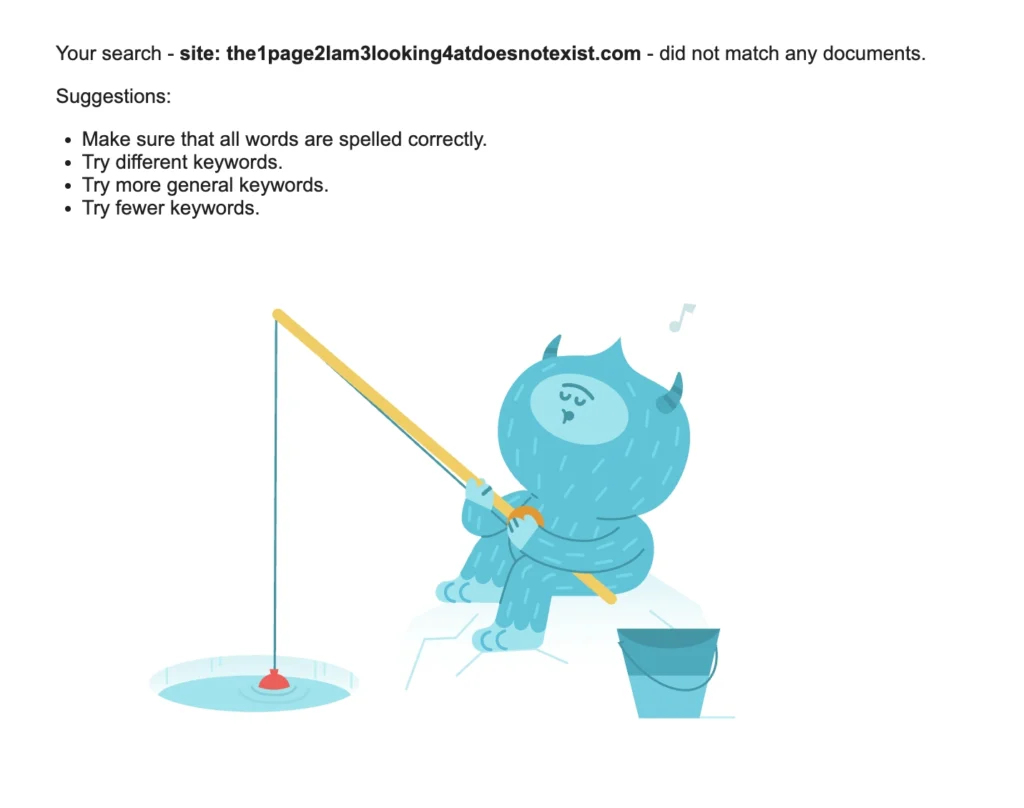
Scenario B: You see “Your search – site:yourdomain.com – did not match any documents.” Okay, we have a problem. Google has not indexed your site yet. No worries, just keep reading below and we will try to fix it.
Did you leave the “Do Not Disturb” sign on?
If you use WordPress or a CMS with a similar setting option, this is the #1 reason new websites stay invisible.
When developers build a site, they often turn on a setting to stop Google from showing the half-finished pages. Sometimes, they forget to turn it off when you go live.
How to check:
-
Log in to your WordPress Dashboard.
-
Go to Settings > Reading.
-
Look for “Search Engine Visibility.”
-
Ensure the box that says “Discourage search engines from indexing this site” is UNCHECKED.
If that box was checked, you were essentially telling the Google bot, “Go away, we aren’t open.” Uncheck it, click Save, and you should appear within a few days.
What is Google Search Console telling you?
If you haven’t set up Google Search Console (GSC) yet, stop reading and go do that now. It is the only way to get a direct answer from Google.
 PRO TIP: Check our step-by-step guide on how to setup Google Search console for your website
Once you are in, look at the “Pages” report (under Indexing). You might see two specific error messages that explain why your website is not showing in Google search:
1. “Discovered – currently not indexed”
-
Translation: Google knows your page exists (it’s in the queue), but it hasn’t bothered to visit it yet.
-
The Fix: Your site might be too new, or your internal linking is weak. Try linking to this page from your Homepage to show Google it’s important.
2. “Crawled – currently not indexed”
-
Translation: Google visited the page, looked around, and decided it wasn’t worth showing in search results (yet).
-
The Fix: This is usually a quality issue. Is the page blank? Is it duplicate content? Add more unique text and images to prove to Google that this page offers value.
In any case, I’ve got you covered. Keep reading to learn how you can improve your on-page SEO and get Google index your pages!

On-Page SEO Matters When Your Website Is Not Showing Up on Google
SEO (Search Engine Optimisation) is the essential bridge that connects your business to people searching online. Without it, your website is like a shop hidden down a dark alley with no signs pointing the way. On-page SEO is where your online visibility begins, and where you have the most control. If your website is not showing up on Google, then probably your SEO needs some attention.
If your website is not showing up on Google, the issue often lies in on-page SEO. This involves optimising individual pages, content, keywords, titles, and images to improve rankings.
When millions of users turn to Google to find solutions, the search engine looks for the most relevant results. On-page SEO is your way of telling Google, “My page is exactly what the user is looking for.”
When you optimise correctly, you stop your website from not showing up on Google and instead:
-
Climb higher in search results.
-
Attract targeted traffic.
-
Improve user experience.
-
Increase conversions.
Why On‑Page SEO Matters
On-page SEO involves optimizing elements directly on your website’s pages, like content, keywords, titles, and images, to improve rankings, relevance, and user experience for search engines and visitors.
Every day, millions of potential customers turn to Google to solve a problem, answer a question, or find a product or service, maybe even yours. But Google doesn’t just serve up random results. It looks for pages that are relevant, useful, and optimised for what the searcher wants.
That’s where on-page SEO comes in. It’s your chance to say to Google, loud and clear:
“I know what the users are looking for, and this page delivers exactly that.”
When your site is properly optimised:
✅ You climb higher in search results, making it more likely that people will find you before they find your competitors.
✅ You attract the right kind of traffic, people actively searching for what you offer, not just browsing.
✅ You improve user experience, making it easier for visitors to navigate, understand, and take action on your site.
✅ You increase conversions, turning clicks into customers without paying for every visitor through ads.
On-page SEO doesn’t require a huge budget or a full-time team. With the right approach, even the smallest businesses can compete and win in search results.
Let’s break down the key on-page SEO tasks that will make your site more discoverable, more engaging, and ultimately, bring you more business.
The Must-Do On‑Page SEO Checklist for your website to appear on Google
If you are worried about your website not showing up on Google, follow this 10-step checklist to improve your visibility.
1. Page Titles That Pack a Punch
Your page title is the single most important “on-page” ranking factor. If you get this wrong, Google might ignore the page entirely. If you get it right, you don’t just rank higher, you get more clicks than the guy one spot above you.
Use this formula: [Primary Keyword] + [The "Hook" or Benefit] | [Brand Name]
Here is why this works:
-
Front-Loading: Google pays the most attention to the first 3-5 words.
-
The Hook: Users ignore boring titles. Adding a “modifier” (like Affordable, 2024 Guide, Fast) increases click-through rates (CTR).
-
The Brand: Keeps you recognizable but doesn’t waste the valuable “prime real estate” at the start of the title.
✅ Examples:
Accountant -> Small Business Accountant London (Tax & Payroll) | Paddington Accounting office
Plumber -> 24/7 Emergency Plumber in Birmingham – Arrives in 1Hr | JoesPlumbing
Bakery -> Custom Wedding Cakes in London (Tasting Included) | Sugar Cake London
 Tip: Keep it under 60 characters so it doesn’t get cut off in search results.
2. Meta Descriptions That Sell the Click
If your page title is the “Headline,” your meta description is the “Sales Pitch.”
Many business owners skip this and let Google auto-generate a random snippet from the page. This is a huge missed opportunity.
While the description itself isn’t a direct ranking factor, Click-Through Rate (CTR) is. If 100 people see your link and nobody clicks it, Google thinks: “This result must be irrelevant,” and pushes you down. If everyone clicks it, you move up. Simple as that.
The “Bold Text” Secret: When a user searches for a specific keyword (e.g., “emergency dentist”), and you include that exact phrase in your description, Google bolds it. This acts like a visual magnet that draws the user’s eye straight to your listing.
How to Write a Description That Converts: Treat this space like a Google Ad that you don’t have to pay for.
The Winning Formula: [Pain Point/Question] + [Your Solution] + [Call to Action]

✅ Example:
“Car making strange noises? Get a free diagnostic check at Mike’s Auto. honest mechanics, same-day repairs, and fair prices. Book online now!””
Tip: Keep it under 160 characters and include a CTA when possible.
3. Keyword Placement, But Make It Natural
Use your primary keyword (focus keyword) in:
-
Page title
-
First 100 words
-
One or more subheadings (H2 or H3)
-
Image alt tags
-
URL
-
Naturally throughout the content
❌ Don’t stuff keywords, or you risk your website not showing up on Google due to penalties.
4. Headings That Structure and Sell
Use H1 for your main page heading, and H2/H3 for subtopics. Break up long text with headings that reflect what people are searching for.
Headings (H1, H2, H3) are the “skeleton” of your content. They tell Google exactly what is important on the page.
The Hierarchy Rule:
-
H1 (The Book Title): You get one per page. This is your main topic. It must match your Title Tag and include your main keyword.
-
H2 (The Chapters): These are your main sub-points.
-
H3 (The Sub-Sections): These break down the H2s further.
Stop Using “Lazy” Headings: Many business owners use generic headings that waste SEO potential. Since Google gives more ranking weight to words inside a Heading Tag than words in a normal paragraph, you need to be descriptive.
✅ Good:
H2: What Makes Our Garden Design Services Different?
Instead of an H2 that says “Cost factors,” try “How much does a garden landscape design cost in 2026?”
5. Image Optimisation
We all want our websites to look beautiful with high-resolution photography. But if you upload raw photos straight from your iPhone or professional camera, you are killing your SEO.
The “Speed Trap”: A single uncompressed 5MB image can make your page load 3 seconds slower. In the eyes of Google’s “Core Web Vitals” update, a slow site is a broken site. If your page takes too long to load, users bounce, and Google drops your ranking.
The “Blind Bot” Problem (Alt Text): Google is smart, but it is technically blind. It cannot “see” what is in your photo. It relies on Alt Text (Alternative Text) to understand the context. If you leave this blank, you are missing a chance to rank for image searches (which make up over 20% of all searches!).
How to Optimise Like a Pro:
-
Compress First: Never upload an image directly. Use a free tool like TinyPNG or Squoosh.app to shrink the file size without losing quality. Aim for under 100KB per image.
-
Rename Before Uploading: Don’t upload
DSC_0019.jpg. Rename the file on your computer to describe the image, e.g.,modern-kitchen-renovation-london.jpg. -
Write Descriptive Alt Text: Describe the image naturally, but include your keyword if it fits.
✅ Example:
alt=”Modern kitchen renovation in Manchester”
6. Clean, SEO-Friendly URLs
Ditch messy URLs like /page123?id=456. Messy URLs confuse crawlers. This is easily manageable through permalinks if you are using a CMS such as WordPress
✅ Use clear, keyword-based ones:/bathroom-renovations-edinburgh
Bonus tip: Use hyphens (not underscores) and keep URLs short and readable.
7. Internal Linking
If your website is a house, internal links are the hallways. If you build a room (a page) but forget to build a hallway (a link) leading to it, nobody can find it, not your visitors, and definitely not Google.
The “Orphan Page” Danger: A page with no internal links pointing to it is called an “Orphan Page.” Google hates these. If you publish a new service page but don’t link to it from your Homepage or Menu, Google assumes it’s unimportant and often won’t bother indexing it.
Why It Matters (The “Juice” Flow): Your Homepage usually has the most authority (SEO power). By linking from your Homepage to your deeper blog posts or service pages, you pass that authority down the chain. This helps those smaller pages rank higher.
The “Anchor Text” Rule (Crucial): The words you click on matter. They tell Google what the next page is about.
-
Stop doing this: “To see our plumbing services, click here.” (This tells Google the page is about “click here”).
-
Start doing this: “We also offer 24/7 emergency plumbing repairs.” (This tells Google the page is about “emergency plumbing”).
✅ Example:
“Learn more about our web design packages.”
8. Mobile-Friendly Design
Nowadays, over 60% of traffic is mobile. If your site doesn’t look and work great on a smartphone, Google knows, and believe me, it won’t rank it highly.
You want to know if it does? Use Google’s Free Mobile-Friendly Test to check.
9. Fast Page Loading
In the mobile era, speed isn’t just a luxury; it’s a requirement. Google has officially made “Core Web Vitals” (speed metrics) a ranking factor.
The Reality Check: If your site takes longer than 3 seconds to load, data shows that over 50% of visitors will hit the “Back” button before it even opens. This high “bounce rate” tells Google your site isn’t helpful, and your rankings will drop.
How to Speed Up (The Quick Wins):
-
Upgrade Your Hosting: Cheap $3/month shared hosting is the #1 cause of slow sites. Moving to a quality host (like SiteGround or Cloudways) is often the fastest fix.
-
Turn on Caching: If you use WordPress, install a caching plugin (like WP Rocket or WP Fastest Cache). This saves a “static” copy of your pages so they load instantly for visitors.
-
Test Yourself: Don’t guess. Run your URL through Google PageSpeed Insights to see exactly what is slowing you down.
✅ Aim for pages that load in under 3 seconds.
10. Content That Answers Questions
Gone are the days of stuffing keywords into a generic 500-word post. Today, Google uses its “Helpful Content System” to reward pages that actually solve the user’s problem.
The “Intent” Shift: Google doesn’t just want to know what a user searched for; it wants to know why they searched for it.
-
If they search “AC repair,” they want a phone number (Commercial Intent).
-
If they search “why is my AC leaking,” they want a troubleshooting guide (Informational Intent).
If your content doesn’t match the intent, you won’t rank.
How to Win the “Answer Game”:
-
The “People Also Ask” Strategy: Before you write, Google your topic. Look at the “People Also Ask” box. These are the exact questions your customers have. copy them, use them as H2 headings, and answer them directly.
-
Be Direct: Don’t bury the answer. If the headline is “How much does a new roof cost?”, the very first sentence should be: “The average cost of a new roof is between $5,000 and $10,000.” Then explain the details. Google loves to grab these direct answers for Featured Snippets (Position Zero).
-
Show, Don’t Just Tell: Use bullet points, comparison tables, and step-by-step lists. These are easier for humans to scan and easier for Google to index.
✅ Ask yourself: “What would someone typing this keyword into Google want to know?”
Time For Action: Optimise Your Site, Attract More Customers
Fixing a website not showing up on Google isn’t about luck, and it certainly isn’t magic. It is simply about following the rules of the road.
If you look at this list of 10 items and feel overwhelmed, stop. You don’t need to fix everything tonight. That is a recipe for burnout.
The “One Thing” Strategy: Pick just one item from this list to do right now.
-
Go check your Title Tag (Tip #1).
-
Run your site through a speed test (Tip #9).
-
Or just verify you aren’t blocking Google by accident (Tip #3).
Even one small adjustment sends a fresh signal to Google that the lights are on and you are open for business. The traffic is out there searching for you—now you have the map to help them find you.
Go make some noise.
FAQ – Quick answers on why your website isn't showing up on Google
Why is my website not showing up on Google?
Your site may not appear on Google if it’s too new, not indexed, blocked by robots.txt, has technical errors, or lacks quality content or backlinks. Most visibility issues are easy to diagnose using Google Search Console.
How long does it take for a new website to show up on Google?
New websites typically appear on Google within 48 hours to 4 weeks. This depends on whether you submitted a sitemap, have internal links, and whether Google can crawl your site without errors.
How do I check if Google has indexed my website?
Type site:yourdomain.com into Google.
If no pages appear, your website has not been indexed. You can request indexing through Google Search Console.
How do I submit my website to Google?
Create a free account on Google Search Console, add your domain, and submit a sitemap (usually yourdomain.com/sitemap.xml). Then request indexing for key pages.
Why does my website appear on Google only when I search the exact URL?
This usually means Google knows your site exists but has not ranked it yet. Your site needs more high-quality content, internal links, and backlinks to appear for broader keywords.
Can Google fail to index my website because of a technical issue?
Yes. A block in your robots.txt, a noindex tag, slow loading speed, broken links, or server errors can all prevent Google from indexing your site.
Why is my website not showing on Google after I redesigned it?
If you changed URLs, didn’t add redirects, or removed important pages, Google may treat your site as new. Redirects (301s) and updated sitemaps fix this.
How do I make my website appear on Google Search faster?
To speed up indexing:
-
Submit your sitemap
-
Fix crawl errors in Search Console
-
Add internal links
-
Get at least one external backlink
-
Publish helpful content
-
Share your URL on social media
Do I need backlinks for my website to show up on Google?
Backlinks help Google trust your site and rank it higher. While not required for indexing, they play a major role in appearing in search results for competitive queries.
Can my business appear on Google without a website?
Yes. A Google Business Profile allows your business to appear in local results even without a website. However, a website helps you rank for more keywords and look more credible.